Interaction to Next Paint (INP): Stop frustrating users with slow buttons
User taps "Add to Cart." Nothing happens. They tap again. Still nothing. Finally, 800ms later, both taps register and two items appear in the cart. Frustrated, they remove the duplicate and consider shopping elsewhere. Your INP is costing you sales.
What is INP (and why it makes sites feel broken)?
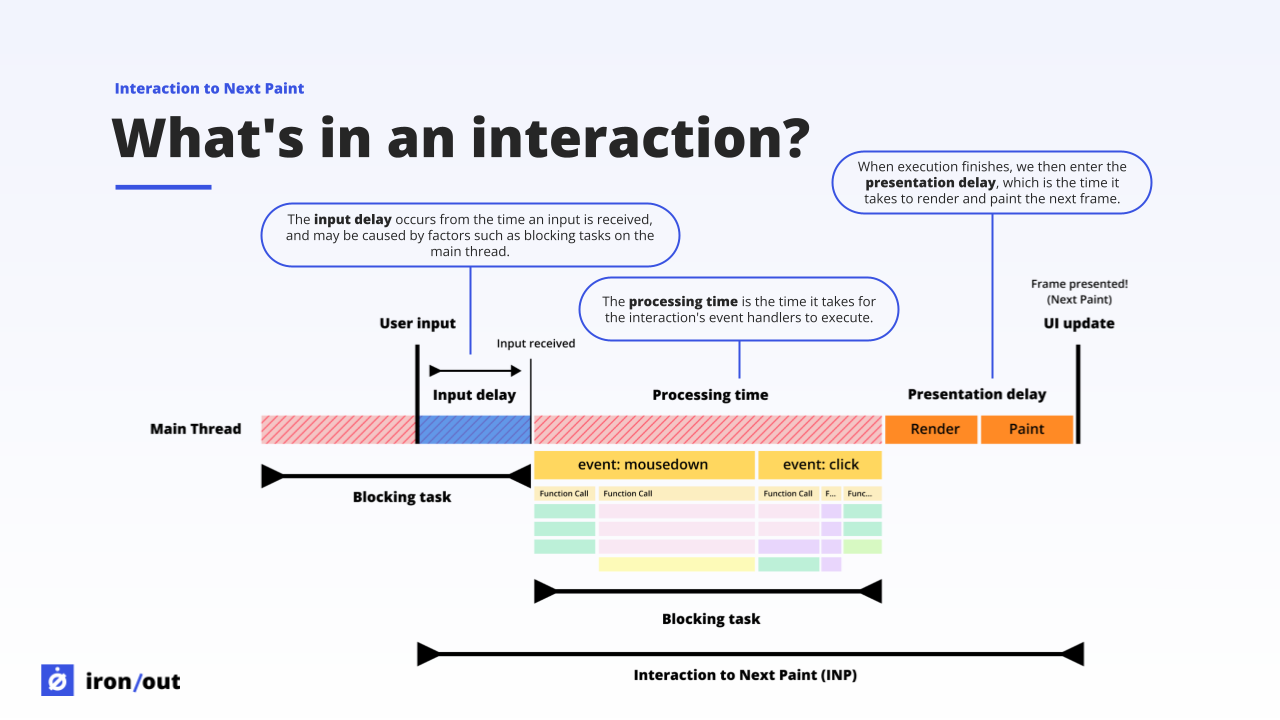
INP measures the delay between when someone clicks, taps, or types and when they see visual feedback. If your button takes 600ms to respond, users think it's broken.
The brutal part: INP tracks your worst interaction, not your average. One slow button during checkout ruins the metric. One sluggish form field tanks your score. Google measures the 75th percentile. That means 25% of your users can have terrible experiences and you'll still pass. But those 25% are leaving.
Unlike the old First Input Delay (FID) metric that only checked the first interaction, INP monitors every click, tap, and keypress throughout the entire visit. It's a much harsher (and more accurate) measure of responsiveness.
INP thresholds
What counts as an interaction? Clicks, taps, and keyboard presses. Hover and scroll events are not included in INP measurements.
The hidden cost of slow interactions
Poor INP doesn't just annoy users. It breaks their mental model of how websites work. When a button doesn't respond instantly, they assume the site is broken, their internet is down, or they didn't click properly. They retry, double-click, and refresh. This creates more problems.
Double submissions
User clicks "Submit Order," nothing happens for 600ms, they click again. Now you have duplicate orders, angry customers, and refund requests.
Form abandonment
Typing in a search box with 400ms lag feels broken. Users assume the field is dead, retype, and trigger the same lag again. Every retry adds another slow interaction to your 75th percentile.
Mobile users hit hardest
Across the 1,552 e-commerce sites in our mobile benchmark, median INP is 194ms against a 200ms threshold. Half the market is a few milliseconds from failing, and no developer laptop will ever show you that.
What this looks like in practice. We took Simyo's mobile INP from 413ms to 150ms at the 75th percentile, and desktop from 102ms to 52ms. Their mobile UX Score went from 82 to 100.
The cause was third-party tooling and tracking rather than their own application code, which is the usual finding and the reason lab profiling on a developer machine tends to miss it. We located the offending interactions with field attribution data, not a local profile.
We ran the same programme across three Frasers Group brands, flannels.com, sportsdirect.com and houseoffraser.co.uk, over three months, without replatforming or changing their tooling.
How to measure INP
Field data (Real users)
INP can only be measured with real user data. Lab tools can't capture it because they don't simulate real interactions:
- Iron/Out free benchmark - Get your INP from Chrome UX Report
- Google Search Console - Core Web Vitals report shows INP by page group
- Real User Monitoring - Track INP for every visitor with our observability implementation
Debugging INP in the lab
While you can't measure INP in lab tools, you can identify the causes:
// Chrome DevTools Performance tab
// 1. Start recording
// 2. Perform the slow interaction
// 3. Stop recording
// 4. Look for:
//    - Long tasks (red flags in the timeline)
//    - JavaScript execution blocking the main thread
//    - Event handler duration

// The Performance tab shows an "Interactions" track
// that highlights slow interactions automatically
Measure INP programmatically
Install the web-vitals library:
npm install web-vitalsThen track INP:
import {onINP} from 'web-vitals';

onINP((metric) => {
  // Send to analytics
  console.log('INP:', metric.value);

  // Get the specific interaction that caused this INP
  const interaction = metric.entries[0];
  console.log('Slow interaction:', {
    type: interaction.name, // 'pointerdown', 'click', 'keydown'
    target: interaction.target, // DOM element
    duration: interaction.duration,
    startTime: interaction.startTime
  });
});
Common causes of poor INP
1. Heavy JavaScript execution
When users interact, JavaScript event handlers run on the main thread. If your handler executes 400ms of JavaScript, INP will be at least 400ms.
Fix: Break up long tasks, defer non-critical work, use web workers for heavy computation.
2. Long tasks blocking the main thread
If a long task (>50ms) is running when the user interacts, the browser can't respond until that task finishes. Users wait while JavaScript runs.
Fix: Yield to the main thread frequently, code-split large bundles, lazy load non-critical features.
3. Expensive DOM updates
After your event handler runs, the browser needs to recalculate styles, layout, and paint. Complex DOM changes take time.
Fix: Minimise DOM mutations, batch updates, avoid forced synchronous layouts, use CSS transforms instead of layout properties.
4. Third-party scripts
Analytics, ads, chat widgets, and A/B testing tools all run JavaScript on the main thread. They compete for processing time during interactions.
Fix: Audit and remove unused scripts, defer non-critical tags, use facades for heavy widgets.
5. Inefficient event handlers
Event handlers that do too much work, make synchronous network requests, or trigger cascading updates can block for hundreds of milliseconds.
Fix: Optimise handler logic, debounce/throttle high-frequency events, make handlers async where possible.
INP optimisation techniques
1. Break up long tasks
The browser can only respond to interactions between tasks. Break long-running JavaScript into smaller chunks to give the browser opportunities to handle user input.
Yield to the main thread
// Bad: Processes all items in one long task
function processItems(items) {
  items.forEach(item => {
    // Heavy processing
    heavyWork(item);
  });
}

// Good: Yields after each batch
async function processItems(items) {
  for (let i = 0; i < items.length; i++) {
    heavyWork(items[i]);

    // Yield to browser every 5 items
    if (i % 5 === 0) {
      await new Promise(resolve => setTimeout(resolve, 0));
    }
  }
}

// Better: Use scheduler.yield() (Chrome 115+, Firefox 2025+)
async function processItems(items) {
  for (let i = 0; i < items.length; i++) {
    heavyWork(items[i]);

    // Yield every 5 items to let browser handle interactions
    if (i % 5 === 0) {
      await scheduler.yield();
    }
  }
}
Impact: Can reduce INP by 100-300ms on pages with heavy JavaScript
2. Optimise event handlers
Defer non-critical work
// Bad: Everything runs immediately
button.addEventListener('click', () => {
  updateUI();           // Critical
  trackAnalytics();     // Not critical
  updateRecommendations(); // Not critical
  syncToServer();       // Not critical
});

// Good: Only critical work is synchronous
button.addEventListener('click', () => {
  // Immediate visual feedback
  updateUI();

  // Defer everything else
  setTimeout(() => {
    trackAnalytics();
    updateRecommendations();
    syncToServer();
  }, 0);
});

// Better: Use requestIdleCallback for non-urgent work
button.addEventListener('click', () => {
  updateUI();

  requestIdleCallback(() => {
    trackAnalytics();
    updateRecommendations();
  });

  // Still defer server sync but with higher priority
  setTimeout(() => syncToServer(), 0);
});
Debounce expensive handlers
// For search input, filtering, etc.
function debounce(fn, delay) {
  let timeoutId;
  return function(...args) {
    clearTimeout(timeoutId);
    timeoutId = setTimeout(() => fn.apply(this, args), delay);
  };
}

const searchInput = document.querySelector('#search');
const debouncedSearch = debounce((query) => {
  // Expensive search operation
  performSearch(query);
}, 300);

searchInput.addEventListener('input', (e) => {
  debouncedSearch(e.target.value);
});
3. Minimise DOM manipulation
Batch DOM updates
// Bad: Multiple layout recalculations
items.forEach(item => {
  const element = document.createElement('div');
  element.textContent = item.title;
  container.appendChild(element); // Layout recalc each time
});

// Good: Build fragment first
const fragment = document.createDocumentFragment();
items.forEach(item => {
  const element = document.createElement('div');
  element.textContent = item.title;
  fragment.appendChild(element);
});
container.appendChild(fragment); // Single layout recalc

// Better: Use innerHTML for large updates (faster)
const html = items.map(item =>
  `<div>${item.title}</div>`
).join('');
container.innerHTML = html;
Avoid forced synchronous layouts
// Bad: Reading layout properties forces immediate recalc
element.style.width = '100px';
const height = element.offsetHeight; // Forces layout
element.style.height = height + 'px'; // Another layout

// Good: Read all layout properties first, then write
const width = element.offsetWidth;
const height = element.offsetHeight;
element.style.width = width + 10 + 'px';
element.style.height = height + 10 + 'px';

// Better: Use CSS when possible
element.classList.add('expanded'); // No JavaScript layout thrashing
4. Use web workers for heavy computation
// Main thread - stays responsive
const worker = new Worker('/data-processor.js');

button.addEventListener('click', () => {
  // Immediate feedback
  button.disabled = true;
  button.textContent = 'Processing...';

  // Heavy work happens off main thread
  worker.postMessage({ data: largeDataset });
});

worker.onmessage = (e) => {
  // Update UI with results
  displayResults(e.data);
  button.disabled = false;
  button.textContent = 'Process';
};

// data-processor.js (runs in worker)
self.onmessage = (e) => {
  const results = heavyComputation(e.data);
  self.postMessage(results);
};
5. Code splitting and lazy loading
// React/Next.js: Load heavy components only when needed
import dynamic from 'next/dynamic';

const HeavyChart = dynamic(() => import('./HeavyChart'), {
  loading: () => <p>Loading chart...</p>
});

// Vanilla JS: Dynamic imports
button.addEventListener('click', async () => {
  const { initChart } = await import('./chart-library.js');
  initChart(data);
});

// Webpack/Vite: Lazy load routes
const routes = [
  {
    path: '/dashboard',
    component: () => import('./Dashboard.jsx')
  }
];
Give visual feedback before the work finishes
INP does not measure how long your code takes. It measures how long the user stares at an unchanged screen. The clock stops at the next painted frame, not when your handler returns.
That distinction is worth money, because it means you can improve INP without making anything faster. Paint something first, then do the work.
A user taps "Add to cart" and your handler calls an API that takes 600ms. If you render nothing until the response lands, INP is 600ms and the user taps again. If you disable the button and show a spinner in the first frame, INP is under 100ms. The API still takes 600ms. The measured metric, and the felt experience, are completely different.
The worst INP offenders are usually interactions that wait on a network request. The latency is not yours to remove, but the silence is.
Three places this pays off immediately:
- Anything that hits the network. Add to cart, apply filter, submit form. Show the pending state before the request, not after the response.
- Menus and accordions that run layout work. Paint the open state, then lazy load whatever goes inside it.
- Form validation. Render the field as being checked rather than waiting for the validation pass to complete.
The pattern is the same each time. Split the handler in two: the part that changes what the user sees, and the part that does the work. Paint the first, then yield before the second.
button.addEventListener('click', async () => {
  // 1. Paint immediately. This is what INP measures.
  button.disabled = true;
  button.textContent = 'Adding...';

  // 2. Let the browser paint before doing the real work.
  await new Promise(requestAnimationFrame);

  // 3. Now the slow part, off the measured path.
  await addToCart(sku);
  button.textContent = 'Added';
});
Advanced INP optimisation strategies
Yield to the browser with scheduler.yield()
When processing large datasets, yield control back to the browser periodically so it can handle user interactions. Unlike setTimeout(0), scheduler.yield() prioritises the continuation of your code. Other queued tasks will not jump ahead. Available in Chrome 115+ and Firefox (since August 2025). Safari does not support it yet.
// Break up long tasks to allow interaction handling
async function processLargeDataset(data) {
  for (let i = 0; i < data.length; i++) {
    processItem(data[i]);

    // Yield every 5 items to let browser handle interactions
    if (i % 5 === 0) {
      await scheduler.yield();
    }
  }

  onComplete();
}

// Fallback for browsers without scheduler.yield()
async function yieldToMain() {
  if ('scheduler' in window && 'yield' in scheduler) {
    return scheduler.yield();
  }
  return new Promise(resolve => setTimeout(resolve, 0));
}

async function processLargeDataset(data) {
  for (let i = 0; i < data.length; i++) {
    processItem(data[i]);

    if (i % 5 === 0) {
      await yieldToMain();
    }
  }

  onComplete();
}
Why this works: Long tasks (over 50ms) block the main thread. By yielding periodically, you break one long task into multiple shorter tasks, giving the browser chances to process clicks, taps, and keystrokes between chunks of work.
Use content-visibility for off-screen content
/* Prevent browser from rendering off-screen content */
.article-section {
  content-visibility: auto;
  contain-intrinsic-size: 1000px; /* Estimated height */
}

/* Reduces layout work during interactions by 50-80%
   on pages with lots of off-screen content */
Optimise React rendering
// Use React.memo to prevent unnecessary re-renders
const ExpensiveComponent = React.memo(({ data }) => {
  return <div>{/* Complex render */}</div>;
});

// Use useCallback for event handlers
const MyComponent = () => {
  const handleClick = useCallback(() => {
    // Handler logic
  }, []); // Dependencies

  return <button onClick={handleClick}>Click</button>;
};

// Use useDeferredValue for non-urgent updates
const MyComponent = ({ searchTerm }) => {
  const deferredSearchTerm = useDeferredValue(searchTerm);
  const results = useMemo(() =>
    expensiveSearch(deferredSearchTerm),
    [deferredSearchTerm]
  );

  return <Results data={results} />;
};

// Use startTransition for non-urgent state updates
import { startTransition } from 'react';

const handleSearch = (value) => {
  setInputValue(value); // Urgent: update input
  startTransition(() => {
    setSearchResults(search(value)); // Not urgent
  });
};
React 19.2+ Activity component
The new <Activity /> component handles modal/tab visibility without unmounting, preserving state and preventing re-renders. See React docs for details.
Improving INP in React and Next.js
React's concurrent rendering exists largely to solve this problem. The default behaviour is that every state update is urgent, so a keystroke that triggers an expensive re-render blocks the frame that should have shown the keystroke.
Mark the expensive update as non-urgent. startTransition tells React the update can be interrupted, so typing stays responsive while a heavy filtered list re-renders behind it.
import {useState, useTransition} from 'react';

function ProductFilter({products}) {
  const [query, setQuery] = useState('');
  const [results, setResults] = useState(products);
  const [isPending, startTransition] = useTransition();

  function onChange(e) {
    // Urgent: the input must show the character now.
    setQuery(e.target.value);

    // Non-urgent: React can interrupt this to stay responsive.
    startTransition(() => {
      setResults(filterProducts(products, e.target.value));
    });
  }

  return <input value={query} onChange={onChange} aria-busy={isPending} />;
}
useDeferredValue does the same job when you receive a value rather than set it, which is the more common case inside a component library.
Cut the JavaScript instead of scheduling it. Concurrent rendering makes a large bundle feel better. It does not make it smaller. In Next.js the App Router renders Server Components on the server with no client-side JavaScript at all, which removes the work rather than deferring it. next/dynamic handles the components that genuinely need to be interactive but not immediately.
Suspense helps at startup. Selective hydration lets the parts of the page a user actually touched become interactive first, rather than waiting for the whole tree.
Framework APIs help with INP specifically. They do nothing for FID, which Google retired in March 2024. If a React performance article still frames its advice around FID, it predates the change and its benchmarks are measuring the wrong thing.
Not sure whether any of this is actually a problem on your site? Our free benchmark reports your INP from real Chrome user data in about 30 seconds.
"INP issues detected on your sites" in Search Console
If Google has emailed you with the subject "Core Web Vitals INP issues detected on your sites", or you have seen the same warning in Search Console, this is what it means and what it does not.
INP replaced FID as the responsiveness Core Web Vital in March 2024. The report is not a warning about a future change. It is telling you that real Chrome users are already experiencing slow interactions on pages that are already being assessed on this metric.
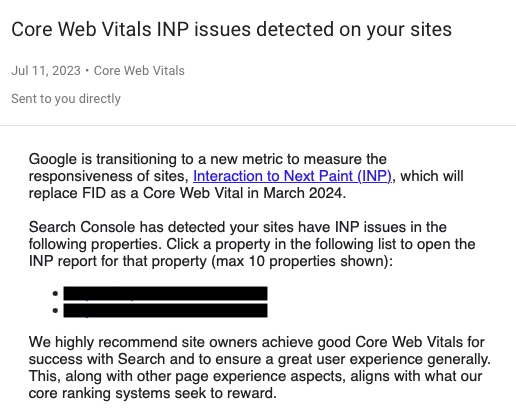
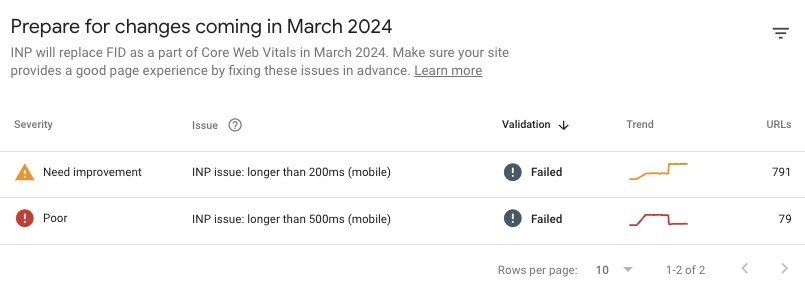
The report groups your URLs and flags them at one of two severity levels, matching the INP thresholds:
- Need improvement, meaning above 200ms
- Poor, meaning above 500ms
Mobile is flagged far more often than desktop, and that is not a sampling artefact. Phone processors are slower, so the same JavaScript blocks the main thread for longer. See common causes of poor INP for what actually consumes that time.
The report tells you where, not why
Search Console shows you which URL groups are affected. It will not tell you which interaction, which handler, or which script is responsible. For that you need the Performance panel in DevTools on a throttled profile, or field data that captures the interaction target.
Once you have shipped a fix you can ask Google to validate it, but expect to wait. The report is built on CrUX, which is a rolling 28-day window of field data, so a fix deployed today cannot show a clean result for several weeks. That lag is the strongest argument for running your own real user monitoring alongside it: RUM shows you the effect of a deployment the same day, and attributes the delay to a specific element rather than a group of URLs.
Monitoring INP over time
INP is the hardest Core Web Vital to monitor because it varies by user behaviour. Different users trigger different interactions.
Track problematic interactions
import {onINP} from 'web-vitals';

onINP((metric) => {
  // Only report poor INP (> 200ms)
  if (metric.value > 200) {
    const interaction = metric.entries[0];

    // Send detailed context to analytics
    analytics.track('poor_inp', {
      inp_value: metric.value,
      interaction_type: interaction.name,
      target_element: interaction.target?.tagName,
      target_id: interaction.target?.id,
      target_class: interaction.target?.className,
      page_url: location.pathname,
      user_agent: navigator.userAgent
    });
  }
});
Set up alerts
- CrUX API: Monitor your 75th percentile INP weekly
- RUM threshold alerts: Get notified when INP exceeds 200ms for >10% of users
- Regression detection: Alert when INP increases by >50ms after deployment
Performance budgets
- INP: Under 200ms (75th percentile)
- JavaScript bundle size: Under 300KB (gzipped)
- Long tasks: No tasks over 200ms
- Third-party scripts: Under 5 total
INP optimisation checklist
Still seeing poor INP?
INP is the hardest Core Web Vital to optimise. We can profile your interactions, identify bottlenecks, and implement proven fixes. Get in touch or run a free benchmark to see your current INP.
Need help fixing your INP?
We can identify JavaScript bottlenecks and implement optimisations that make your site feel instantly responsive.